
Overview
The KPSOM Zoom login uses SSO to authenticate your sign-in. Please sign in with your KPSOM account to experience the premium features of Zoom.
How to download the Zoom iPhone app:
To download the Zoom mobile app for iOS:
- Tap the App Store icon.
- At the bottom right of your screen, tap Search.
- Enter “Zoom” in the search box.
- Once your search results appear, tap ZOOM Cloud Meetings.
- Tap the GET button.
Zoom will start to download on your iOS device.
Note: When the Zoom mobile app finishes the installation, the Zoom app icon will appear on your Home screen. - After you finish downloading the Zoom mobile app, you can access and begin to use Zoom by the following methods:
- If you stayed on Zoom’s App Store page, tap OPEN.
- If you exit the App Store, tap the Zoom mobile app icon on your Home screen.
How to Login to the Zoom Mobile app:
To log into your KPSOM Zoom account:
1. Open the Zoom app on your device
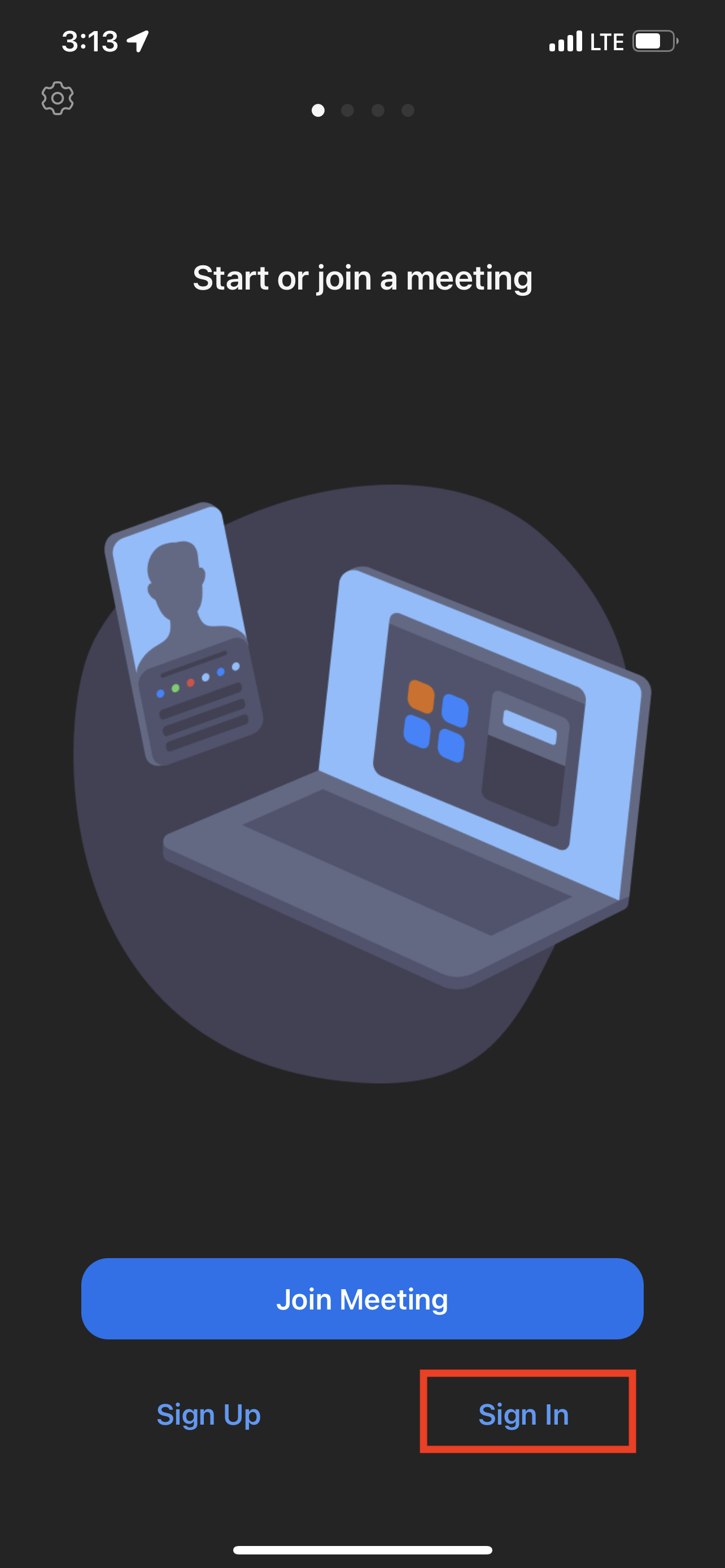
2. Click or tap Sign in
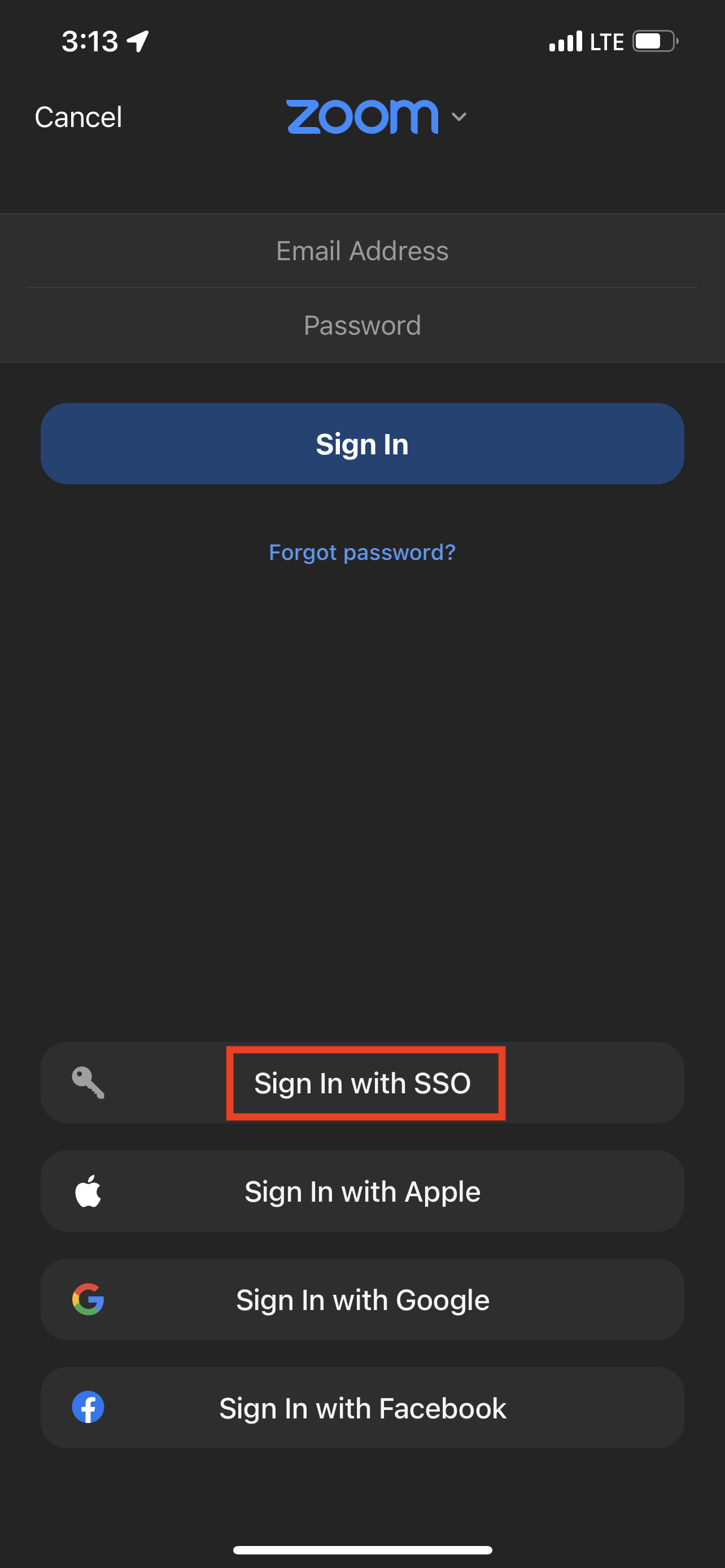
3. On the bottom left of the screen, tap SSO
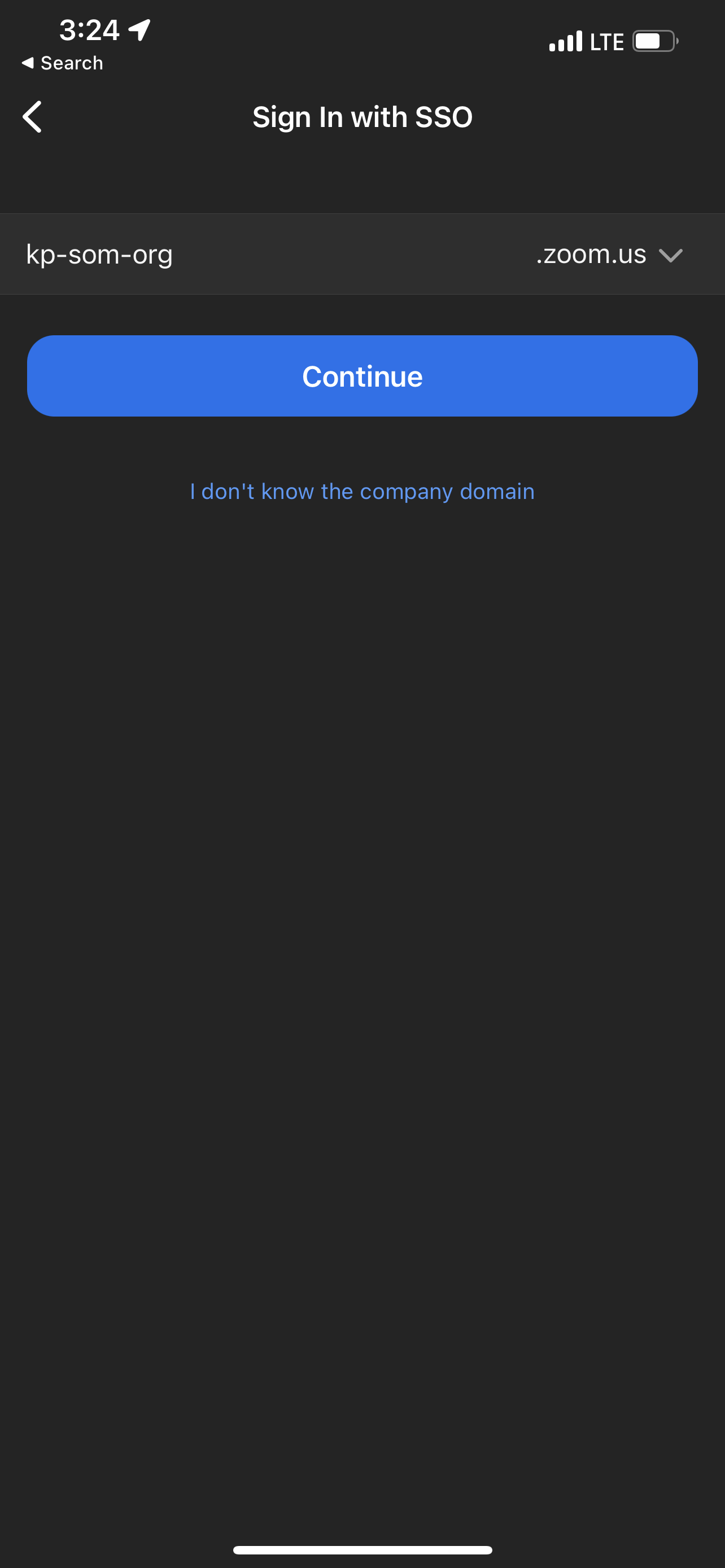
4. When prompted for your Company Domain, type in: kp-som-org
5. Login with your NUID and password
6. If prompted for PingID, please authenticate.
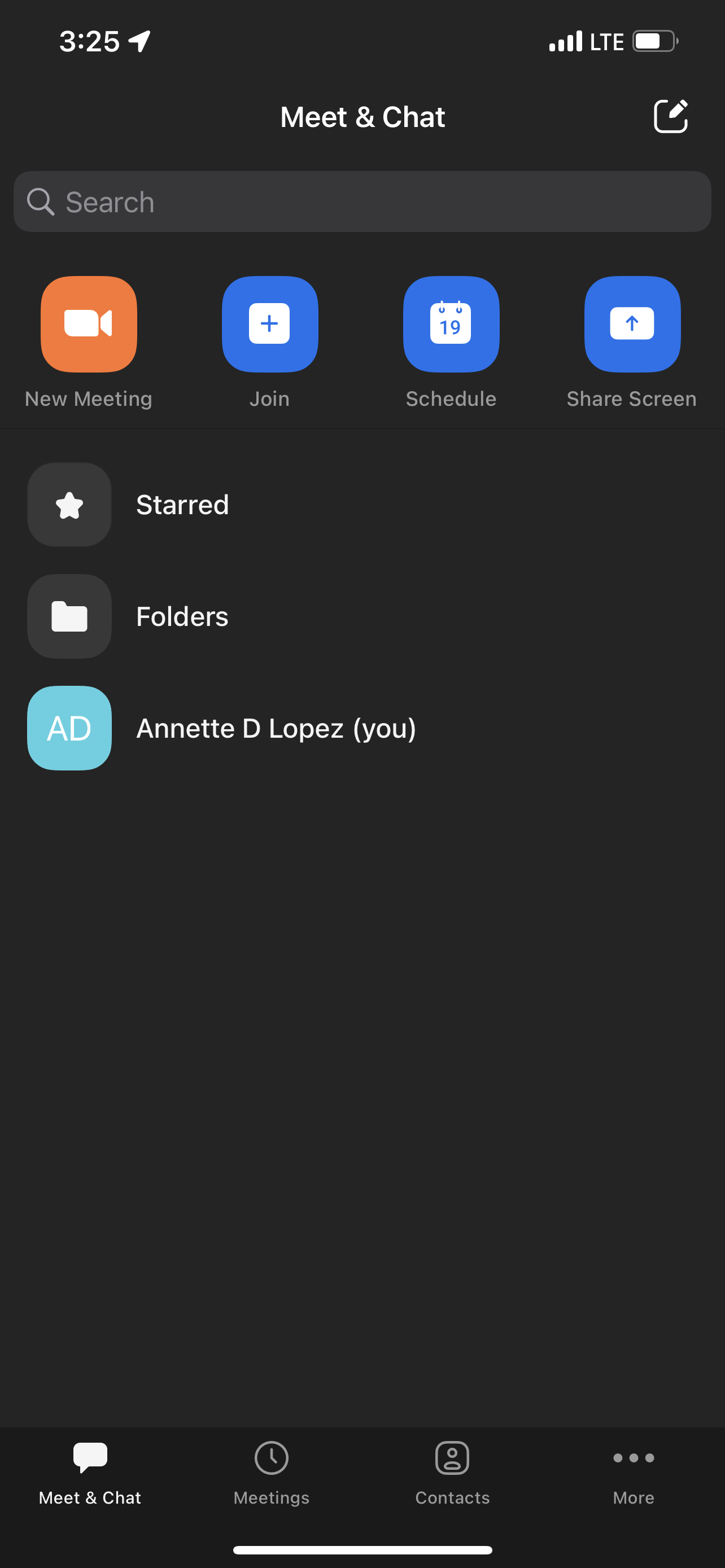
7. You should see this page once you're signed in:
How to join a Zoom meeting on the mobile app:
-
Open the Zoom mobile app
-
Tap Join.
-
Make sure you are signed into Zoom. See the previous section on How to Login to the app.

-
-
Enter the meeting ID number and your display name.
-
If you're signed in, change your name if you don't want your default name to appear.
-
-
Connect audio and video, and select Join.
If you have any trouble at all, please get in touch with KPSOM IT at KPSOMIT@kp.org
Comments
Please sign in to leave a comment.