
Overview
Remote NBME CAS examinations require specific audio/video configurations to ensure the examination can be appropriately administrated. In order to enable remote examination while reducing distractions, we have developed the following instructions to enable adherence to NBME examination requirements and reduction of errant sounds from your colleagues while enabling you to contact a Proctor and receive help from IT in the event you need assistance.
To avoid distracting alerts from incoming calls, texts, and notifications, we are asking you to enable Do Not Disturb mode with the option to Allow Calls from Favorites on your KP iPhone and personal cellphone during the exam. Keep the phone's volume on loud so you can hear the calls come in.
The instructions below will guide you on how to add contacts to your favorites so calls from the Proctors and SOM IT can be received. Additionally, the instructions will show you how to enable and disable Do Not Disturb on an iPhone or Android.
Important note:Do not enable Driving mode on your KP or personal phone. This causes Zoom to lose access to the camera and mic on your phone.
If you need help, call your assigned Proctor. They will notify the Chief Proctor or SOM IT on your behalf. A SOM IT member will give you a call to assist with any technical support issues.
Contents:
iPhone
- iPhone, Part 1: Create Favorite Contacts
- iPhone, Part 2: Turning on Do No Disturb iOS 15
Android
- Android, Part 1: Create Favorite Contacts
- Android, Part 2: Turning on Do Not Disturb on Android 11
iPhone
iPhone instructions were created with an iPhone 11 iOS 15.1. If you need help, please contact kpsomit@kp.org or call us at 626-564-7500.
iPhone, Part 1: Create Favorite Contacts
This section goes over how to create contacts and add to Favorites on an iPhone.
The steps below will guide you on how to add KPSOM as contact. Repeat to add the 2 additional required contacts, Chief Proctor and assigned Proctor.
1. Open the Phone tab -> Tap Keypad to see the dialing screen


2. Type in the phone number but do not tap the Call button
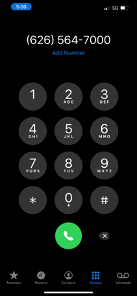
3. Select Add Number
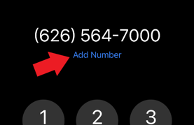
4. Select Create New Contact
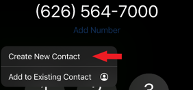
5. Type in the contact name from the table above. Select Done on the top right.
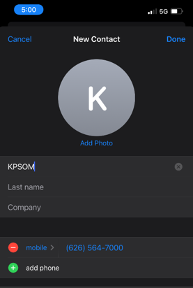
6. Go to the Favorites

7. Select the plus sign on the top left.

8. Search for the contact you created.
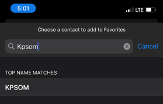
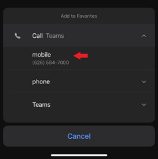
9. Select Call -> Mobile 626-564-7000
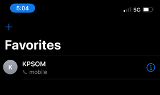
10. You should now see the contact in your Favorites.
iPhone, Part 2: Turning on Do Not Disturb with iOS 15
Enable Do Not Disturb mode on exam day before commencing the exam.
1. Turn your ringer on (the switch on the side of the iPhone)
2. Go to Settings -> Tap on Focus
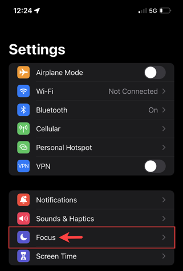
3. Tap on Do Not Disturb
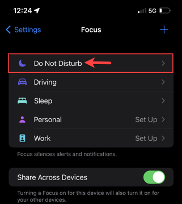
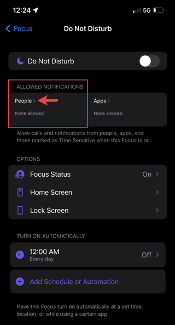
4. Under Allowed Notifications -> tap People
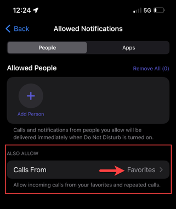
5. Allow Calls From: Favorites
6. Go back one screen, toggle on Do Not Disturb
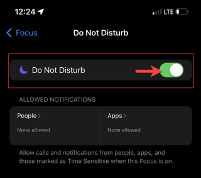
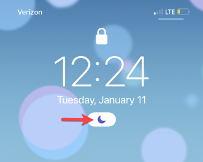
7. When Do Not Disturb is on, there is a crescent moon icon in the status bar and lock screen.

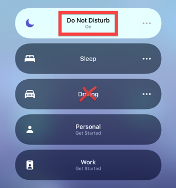
Important note:Do not enable Driving mode on your KP or personal phone. This causes Zoom to lose access to the camera and mic on your phone.
How to turn off Do Not Disturb:
Turn off Do Not Disturb by clicking on the crescent moon icon on the lock screen or swipe down from the top right to toggle Do Not Disturb off through the Control Center. You can also follow the steps above to turn it off through the Settings menu. Disable if instructed by your Proctor or after the exam.
Android
Android instructions were created with Android OS 11. If you need help, please contact kpsomit@kp.org or call us at 626-564-7500.
Android, Part 1: Create Favorite Contacts
This section goes over how to create contacts and add to Favorites on an Android.
The steps below will guide you on how to add KPSOM as a contact.
1. Press the Phone icon and use the keypad to enter the phone number. For example, 626-564-7000.

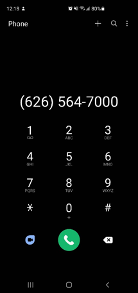
2. Click on + Add to Contacts at the top and Create new contact
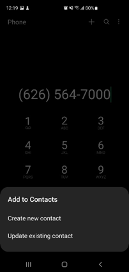
3. Name this new contact and click Save
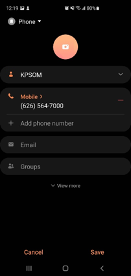
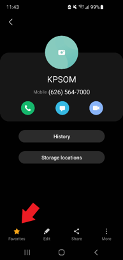
4. Open the contact you just created and click the Star to add as favorite
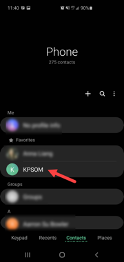
5. The new contact will now show up as a favorite in your contact list. Repeat for the other numbers on the contact list above.
Android, Part 2: Turning on Do Not Disturb on Android 11
Enable Do Not Disturb mode on exam day before commencing the exam.
1. Enter Settings -> Notifications
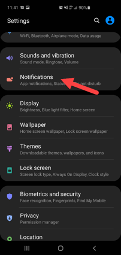
2. Enter Do Not Disturb
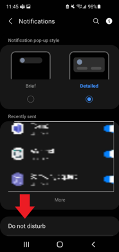
3. Enable Do Not Disturb
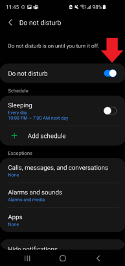
4. Tap on the Calls, messages, and conversations bar and enter the options menu and enable Allow exceptions
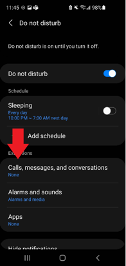
5. Set Calls from and select Favorites contacts only
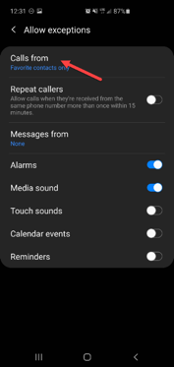
6. The Do Not Disturb icon will show up at the top of your screen

Important note:Do not enable Driving mode on your KP or personal phone. This causes Zoom to lose access to the camera and mic on your phone.
How to disable Do Not Disturb
Disable Do Not Disturb by following the same step in Android, Part 2, step 3. Disable if instructed by your Proctor or after the exam.
Comments
Please sign in to leave a comment.